
Galaxy Digital Frequently-Asked-Questions
Where do I edit my profile?
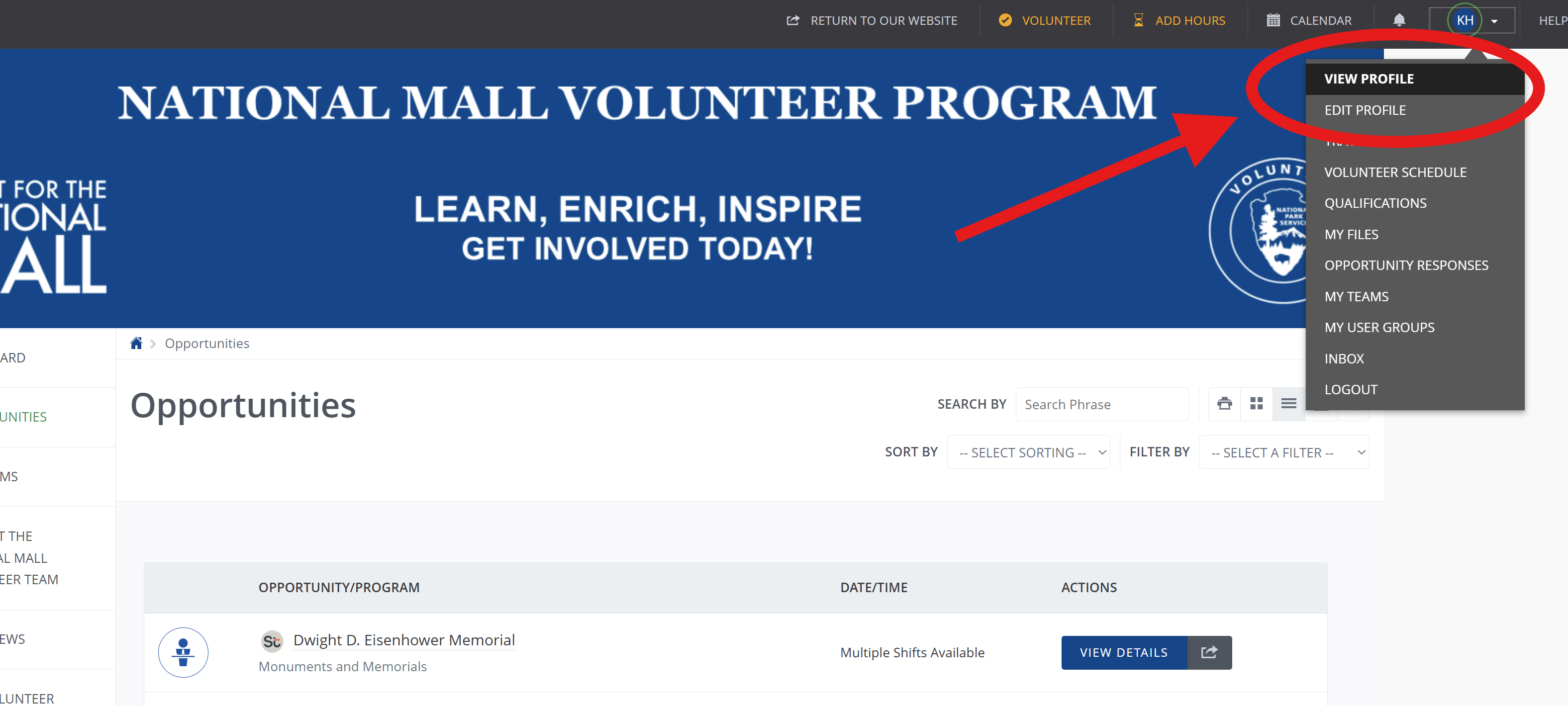
In the upper-right corner of the screen, select the dropdown menu by your initials to view or edit your profile, see your completed and pending qualifications, and view your shifts.
How do I sign my 301a?
A 301a Volunteer Service Agreement is a requirement for any volunteer opportunity with the National Park Service. These forms need to be signed annually. In the Volunteer Portal, the 301a shows up as a "qualification" for every opportunity.
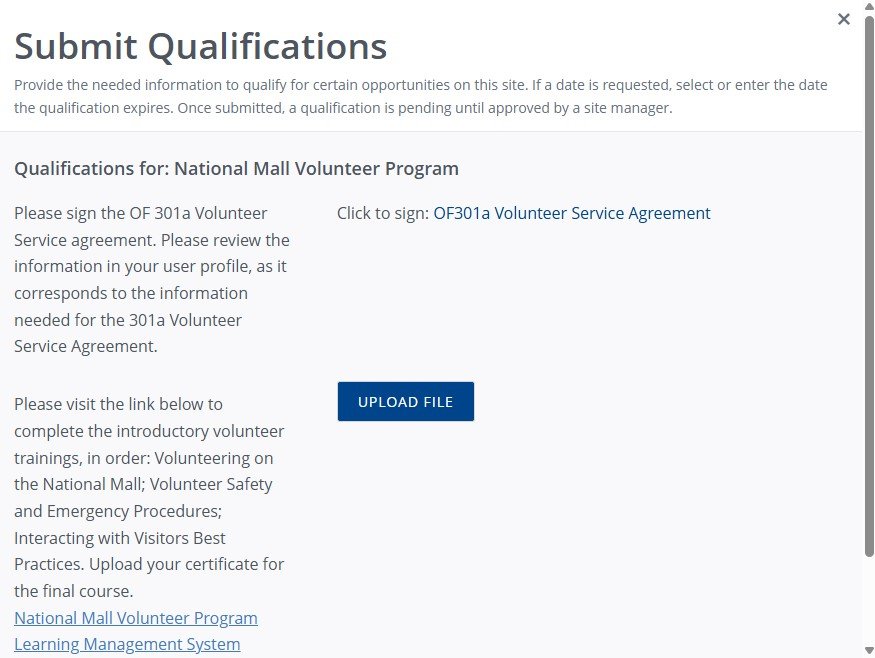
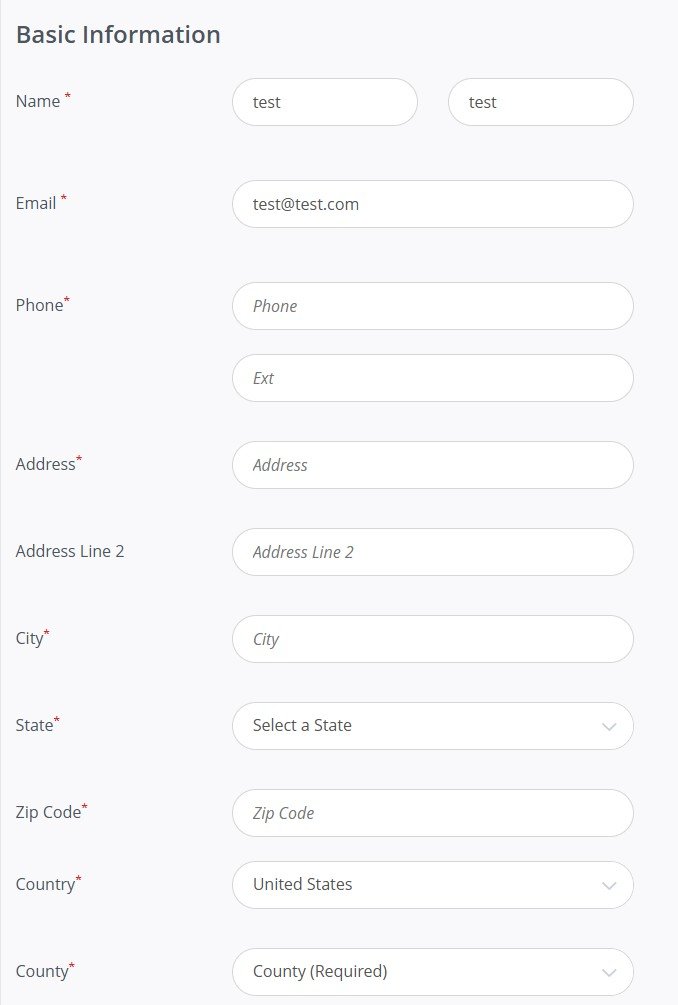
If you need to sign or re-sign a 301a, the portal will prompt you to do so when you attempt to sign up for a volunteer opportunity. The portal instructs you to visit your user profile (see above for how to access) and ensure your basic information is complete and up-to-date. This information corresponds to the information in the 301a.
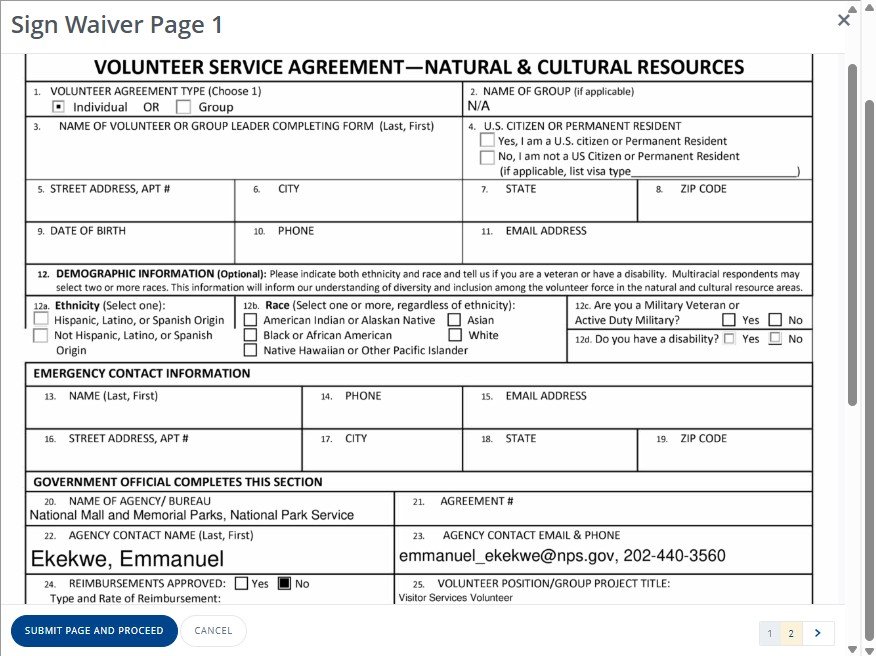
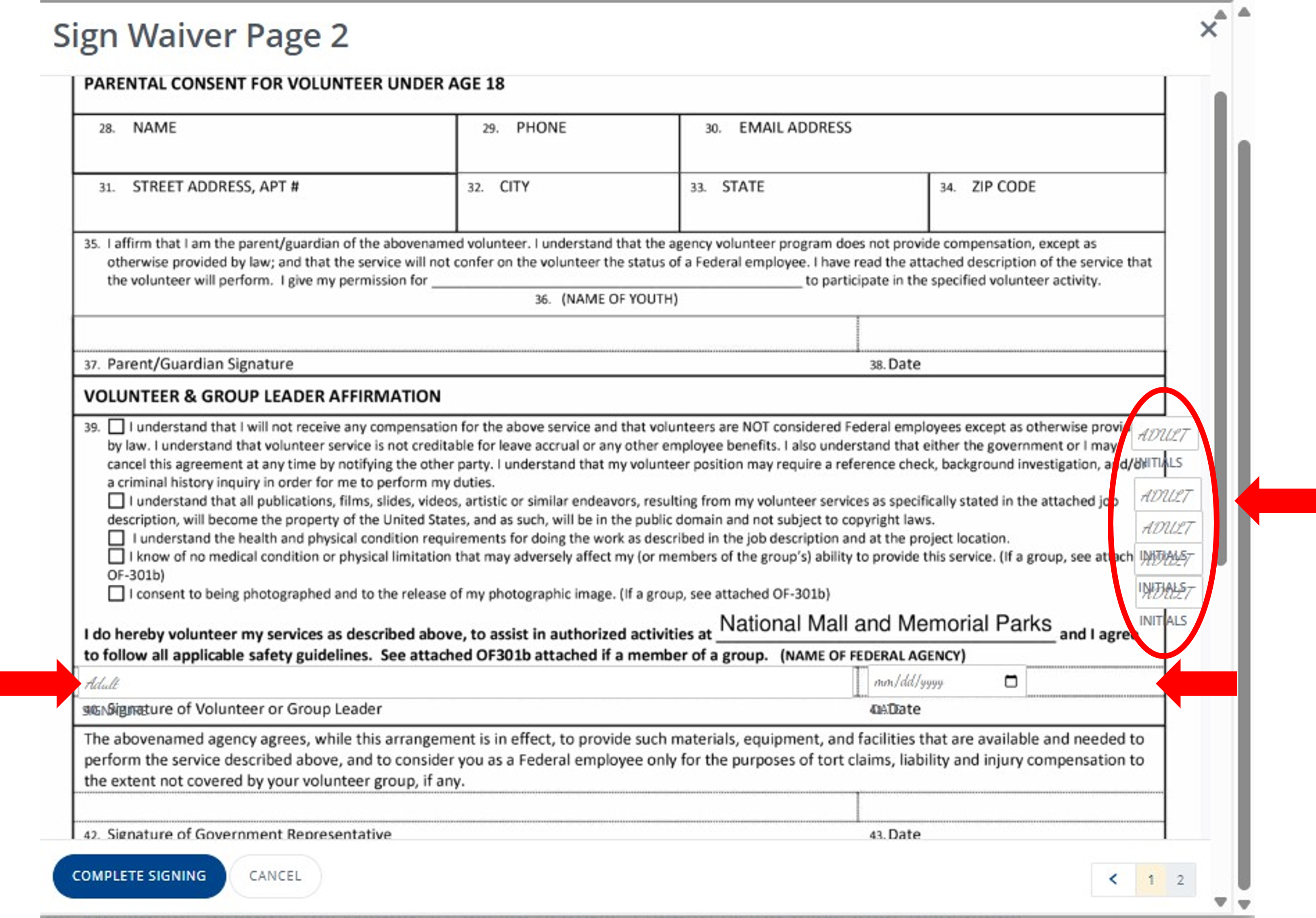
When your profile information is complete, return to the 301a. The information from your profile does not auto-populate into the form. You simply need to review the first page and click submit to get to the signature page. Initial, sign, and date in the indicated fields, then submit.
How do I sign up for shifts?
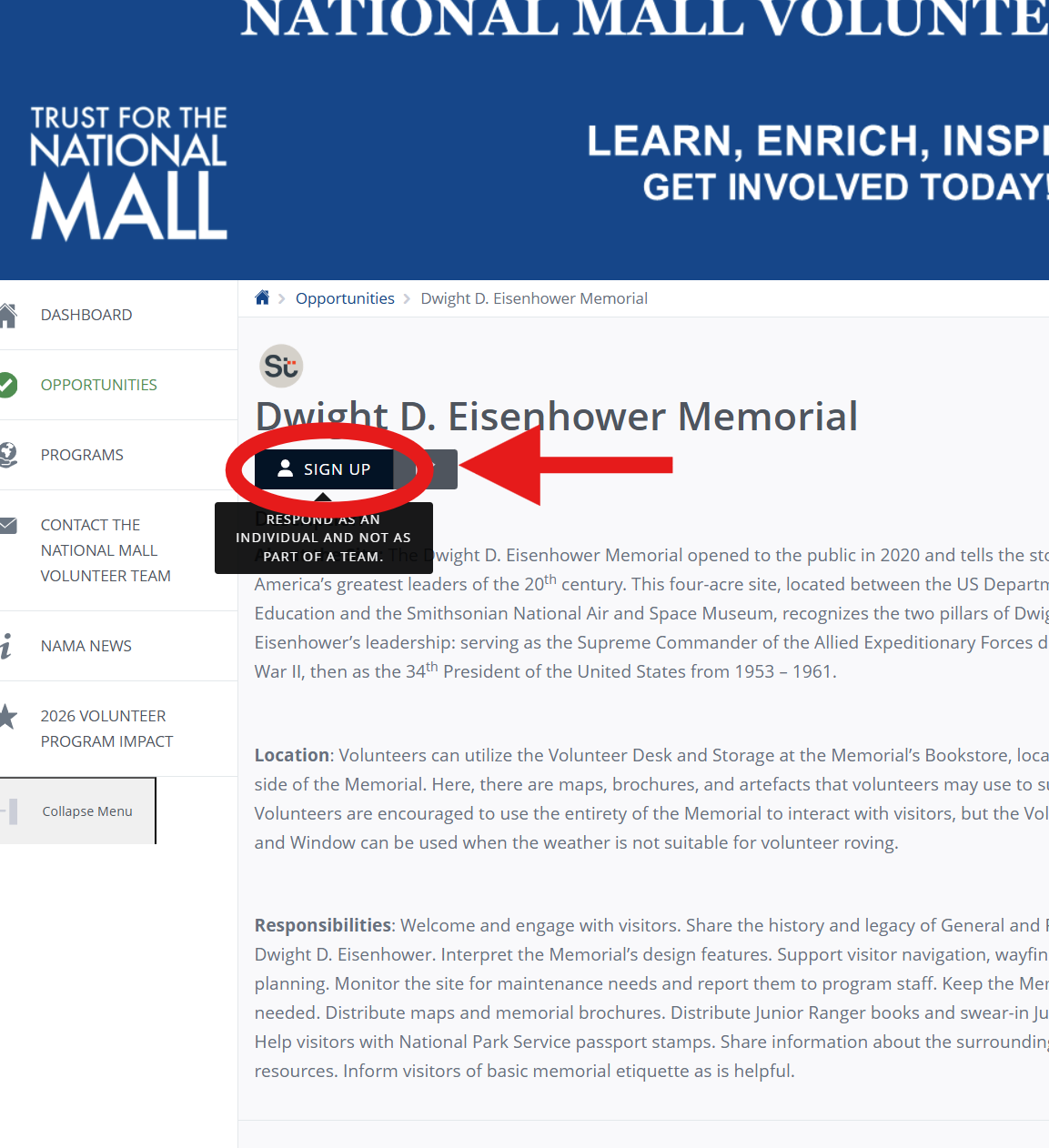
Select the volunteer opportunity you are interested in and select the ‘Sign Up’ or ‘Manage my Responses’ button. If prompted to complete any qualifications or fill in information for a background check, use the links to complete these before signing up.
Once all qualifications are approved, you can sign up for each shift you are interested in. Use the opportunity page for your desired site to view all open and available shifts, and click the 'Sign Up' button to the right of each shift to select your desired sign-ups.
How do I try a new site?
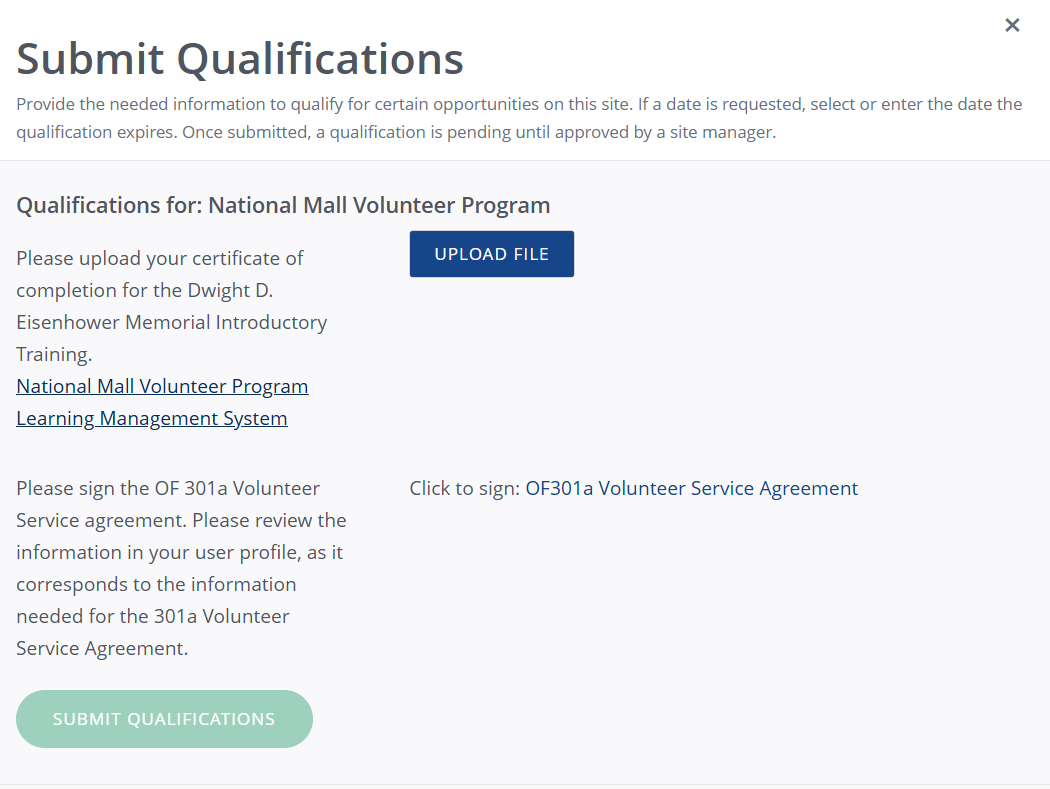
Select the new opportunity and hit ‘Sign Up’ to view all of the required qualifications for that opportunity. Use the links to complete these qualifications, including volunteer trainings. After you submit your certificate of completion for your required trainings, program staff will reach out via email to set up your shadowing shift at the new site. After completing your shadowing shift, you will be able to sign up for any open shifts using the steps above.
Where do I see how many hours I have done?
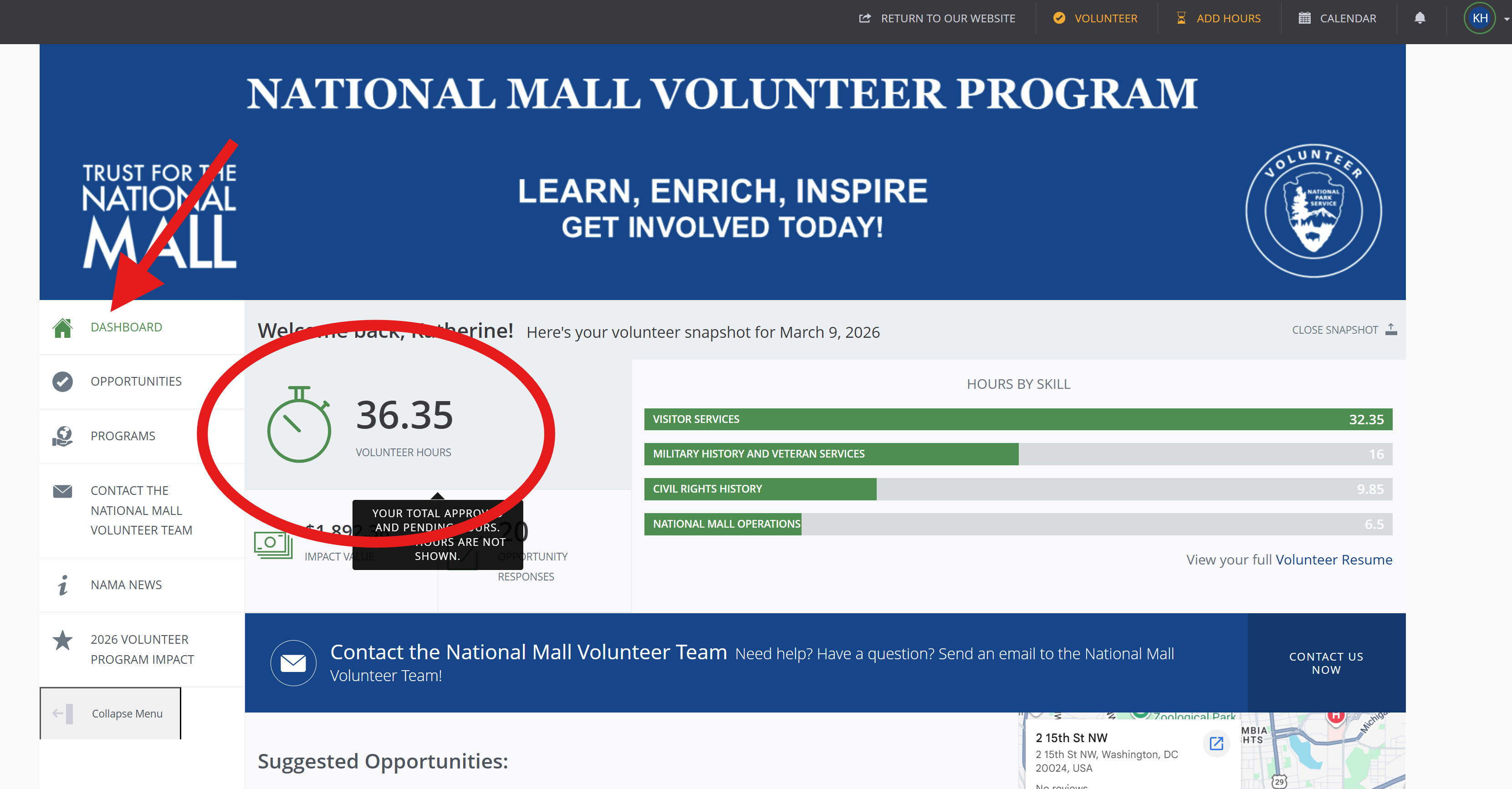
Navigate to your ‘Dashboard’ using the options on the left side of your screen. Your hours are visible, along with a link to a full volunteer resume to explore in detail.
How do I check in / check out of my shifts?
Use the link in your shift reminder email to launch a check-in page.
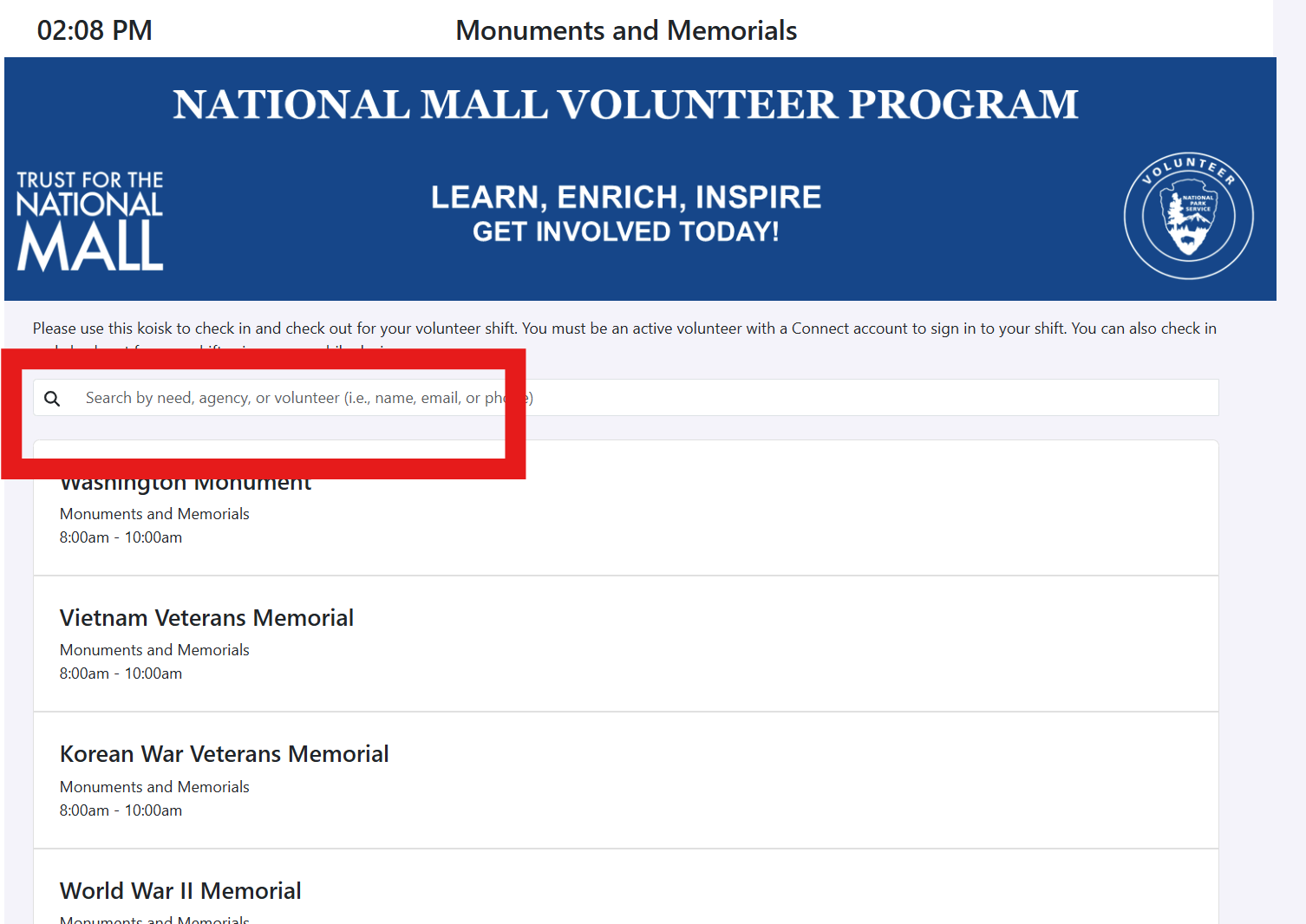
On the check-in kiosk page, search for your name and select the shift (Site + Time) that you are signed up for. You must be pre-registered for this shift, and sign-ups will only display for the same day that they occur.
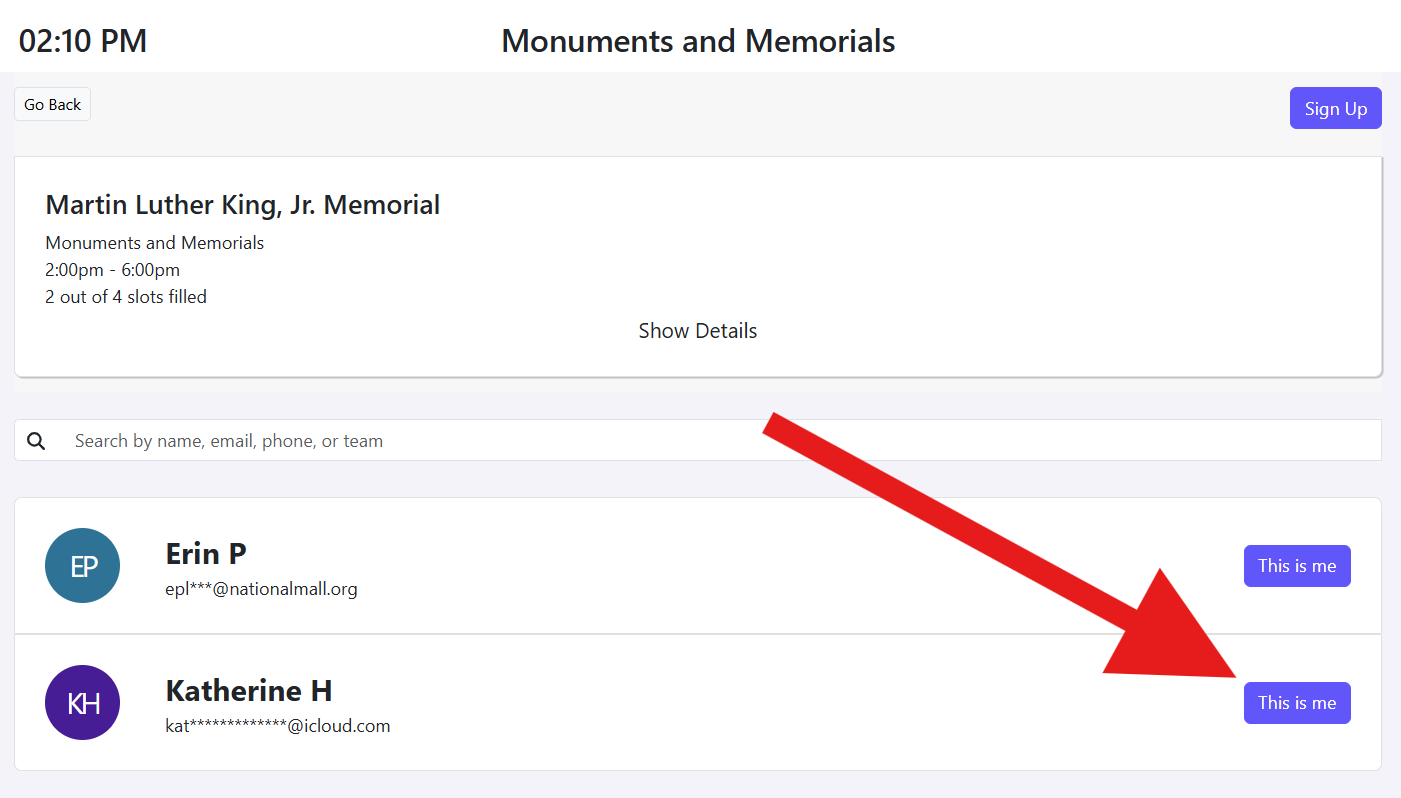
Select 'This is me' next to your name to check yourself in. Be sure to check yourself out when you are done.
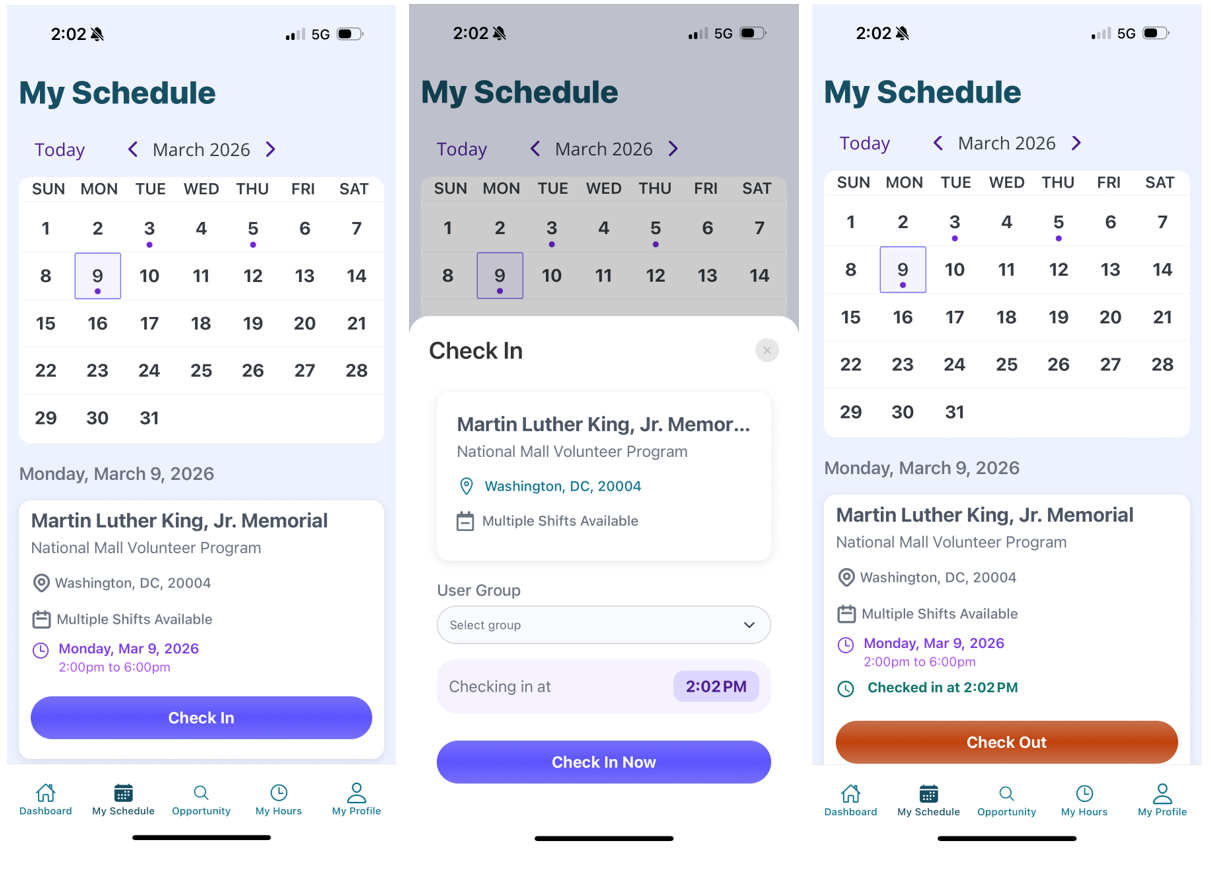
You can also check in using the Get Connected mobile app. Select the shift from your schedule and Check In when you are on site.
What do I do if I forgot to check in / check out of my shifts?
If you didn't check in and out of any of your shifts, use the 'Add Hours' form to submit past hours for approval.
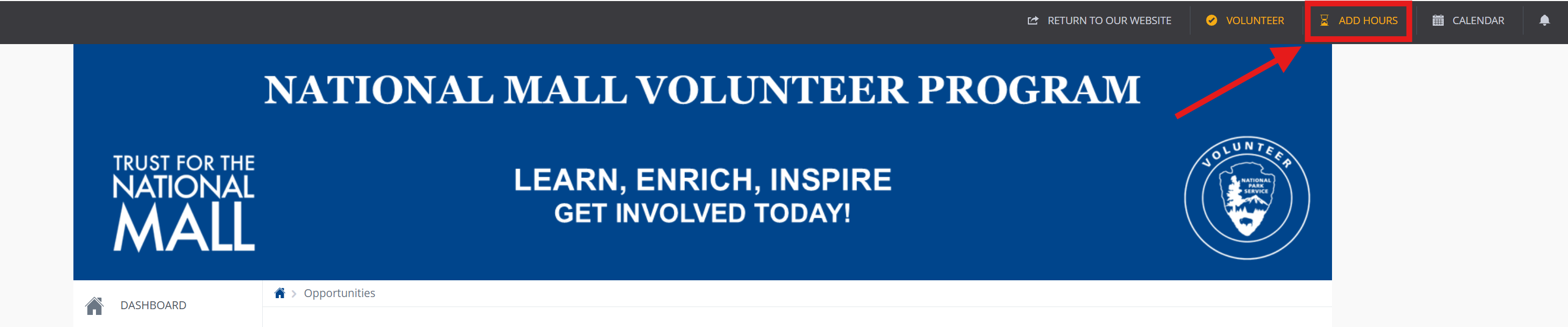
Use the steps below to ensure you fill out the form correctly. To submit hours through this form, you must select the specific shift you served.
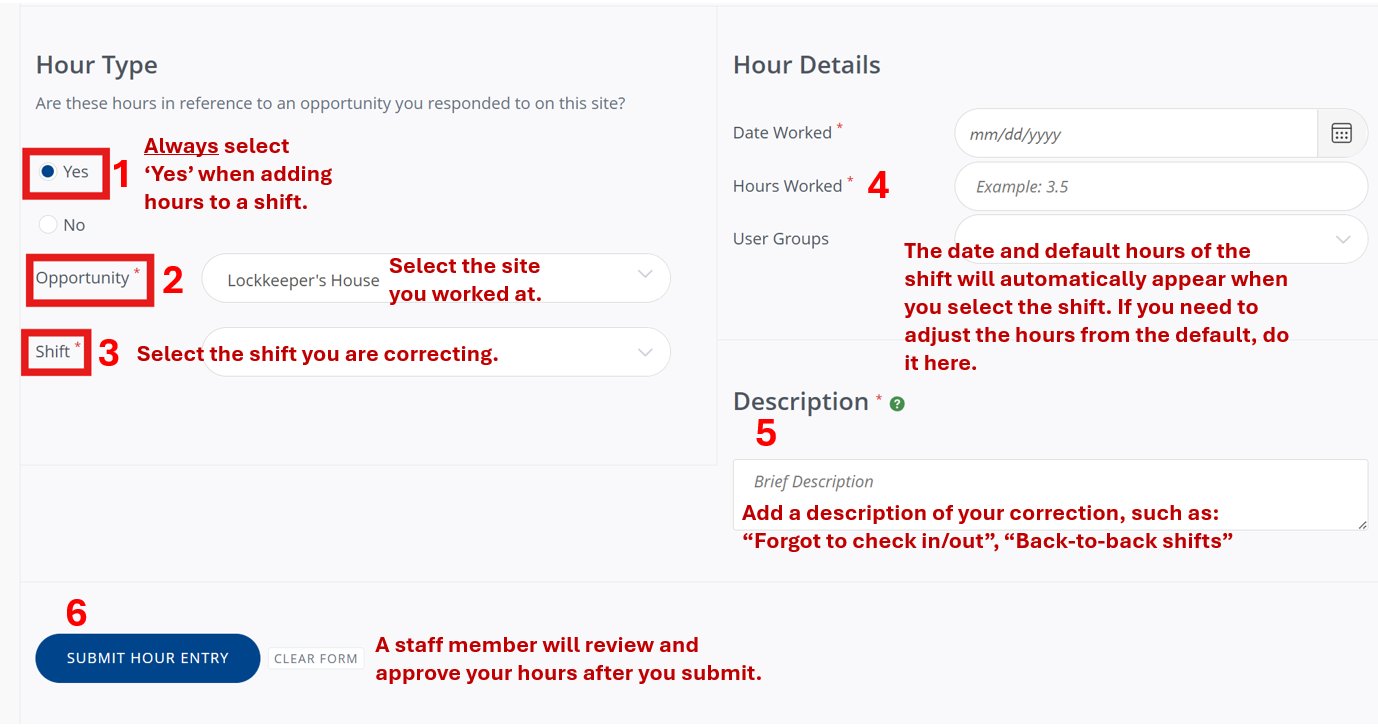
If you worked back-to-back shifts and only checked in and out of one of them, you may be recorded absent for the other. You can submit hours or delete the extra shift - just make sure that your total hours for the day remains accurate!
Additional Information

